

Before you share
- You need write access to the project.
- The person must already be a member of the project’s workspace. To add someone new, invite them to the workspace first.
Permissions
Only the project creator and workspace owners and admins can delete a project. A write permission does not include deletion.
Add someone
1
Open the sharing dialog
Open the project and select Add in the header.
2
Choose a person and permission
Select a workspace member from the list, then choose Read or Write. The list only contains workspace members who don’t have a grant on this project yet.
3
Add
Select Add. They can open the project right away.
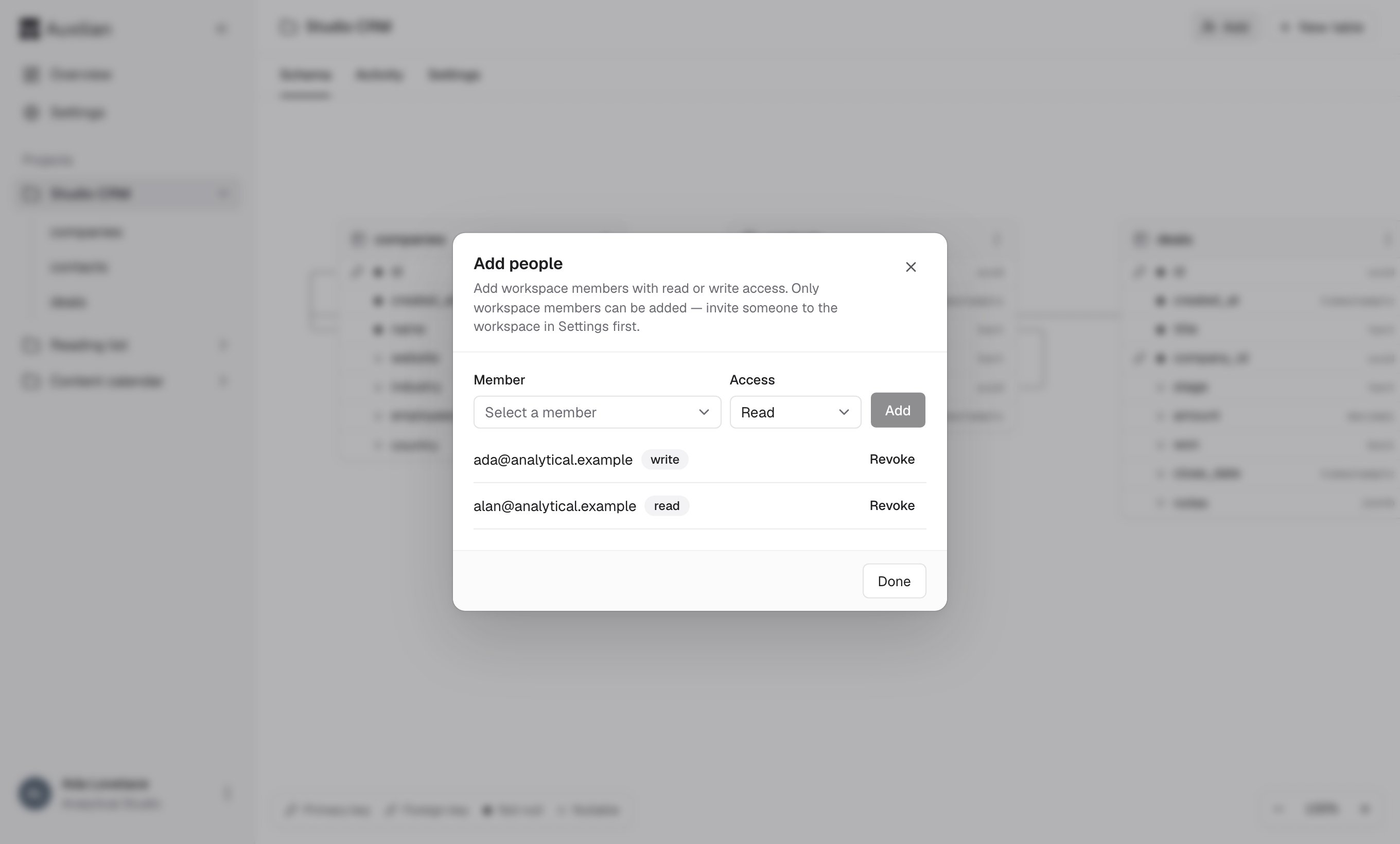
The Add people dialog lists everyone with a grant.
Change someone’s permission
The sharing dialog shows each person’s current permission. To change it, revoke their access, then add them again with the other permission.Revoke access
1
Open the sharing dialog
Open the project and select Add in the header. The dialog lists everyone with a grant.
2
Revoke
Select Revoke next to the person, then Revoke again in the confirmation. They lose access immediately.
Revoking a member’s grant doesn’t affect workspace owners and admins. They keep write access to every project in their workspace for as long as they hold that role.
Sharing and AI assistants
AI assistants can’t share projects or change access. When you share a project with someone, any assistant they’ve connected can use it with the permission you granted. When you revoke access, their assistant loses it too. Sharing changes appear in the activity log asmember.invited and member.revoked.