

The overview page
The Overview page lists every project you can open, across all of your workspaces, with its description and tables. The sidebar shows the same projects; expand one to jump to its tables.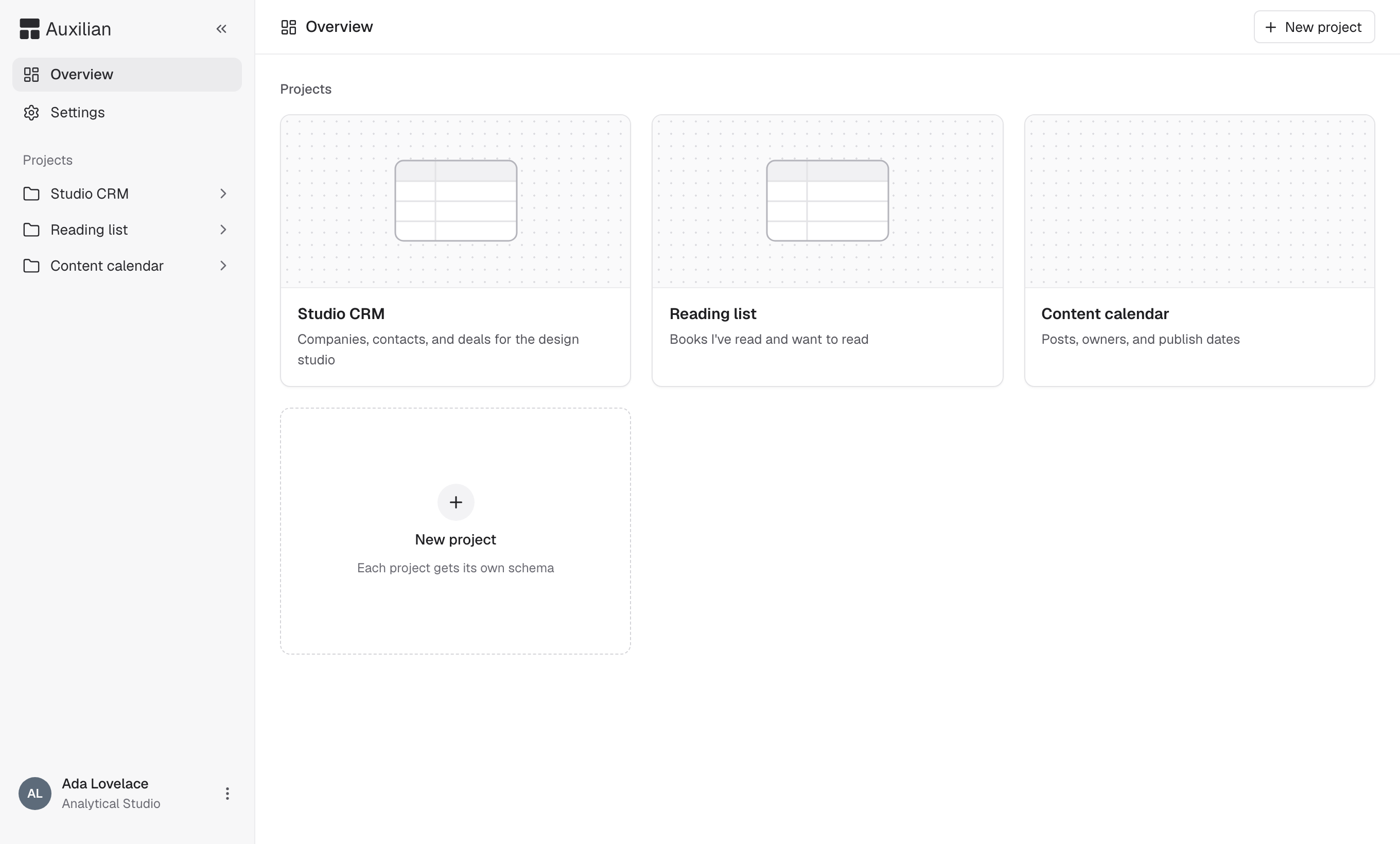
The overview lists every project you can open.
Create a project
Only the owner and admins of the active workspace can create projects. Members don’t see the New project button. Ask an owner or admin to create a project and share it with you.
1
Open the new project dialog
On the Overview page, select New project in the header or the New project tile.
2
Name the project
Enter a name of 1 to 80 characters and an optional description of up to 200 characters. Extra spaces are collapsed.
3
Create it
Select Create project. The project opens with no tables.
Inside a project
A project page has up to three tabs:
People with write access also see Add (for sharing) and New table in the header.
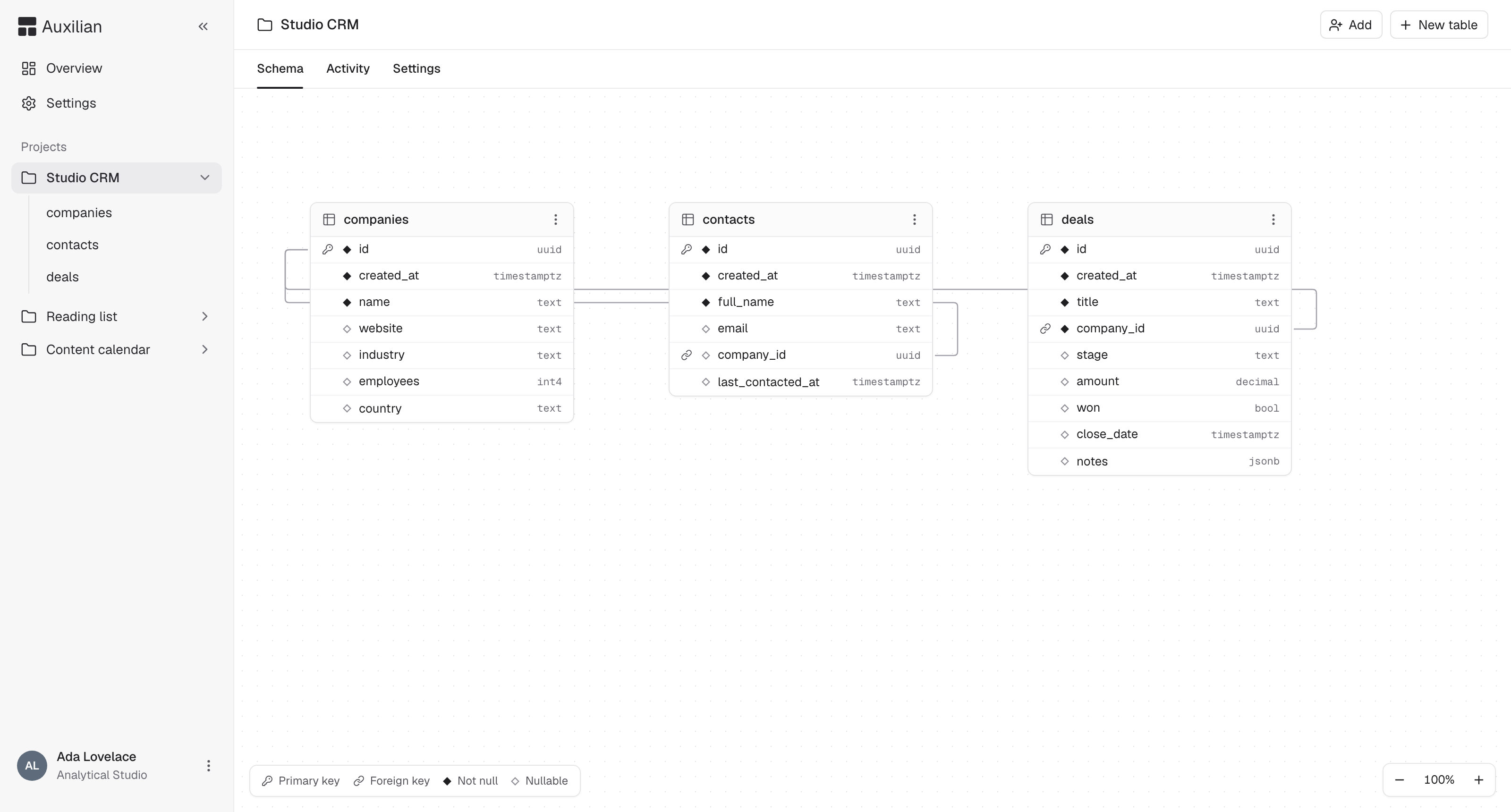
The Schema tab draws each table and the foreign keys between them.
NOT NULL, and a hollow diamond means nullable. Lines between tables are foreign keys. You can drag tables to rearrange the diagram. The diagram labels some types with their Postgres short names: int4 for integer, decimal for numeric, and bool for boolean.
Delete a project
Deleting a project permanently removes its database, every table and row in it, everyone’s access to it, and its activity log.1
Open project settings
Open the project and select the Settings tab. Only the creator and workspace owners and admins see this tab.
2
Confirm the name
Under Delete project, type the project name exactly as shown.
3
Delete
Select Delete project. You return to the overview.