> ## Documentation Index
> Fetch the complete documentation index at: https://docs.auxilian.ai/llms.txt
> Use this file to discover all available pages before exploring further.
# Quickstart
> Sign in, create your first project, connect Claude, and build a table by conversation.
This guide takes you from no account to a working table that Claude created and filled. It takes about five minutes.
## Prerequisites
* A Google account. Google is the only way to sign in to Auxilian.
* A Claude plan that supports custom connectors, or another MCP client that supports remote servers with OAuth. See [Other MCP clients](/ai/other-clients).
## Set up Auxilian
Go to [app.auxilian.ai](https://app.auxilian.ai) and sign in with Google. On your first sign-in, Auxilian creates a personal workspace named after you, such as **Ada's Workspace**, and makes you its owner. If you were invited to someone else's workspace, you join it instead.
On the **Overview** page, select **New project**. Enter a name (up to 80 characters) and an optional description (up to 200 characters), then select **Create project**.
The project is an empty Postgres schema. You can add tables in the web app, but the rest of this guide has Claude do it.
The server URL is the same for everyone and every workspace:
```text theme={null}
https://mcp.auxilian.ai/mcp
```
You can also copy it from **Settings** > **Connect via MCP** in the web app.
## Connect Claude
In Claude, open **Settings** > **Connectors** and select **Add custom connector**. Name it `Auxilian` and paste the server URL.
Claude opens a browser window. Sign in with the same Google account, then review the approval page and select **Allow**.
The approval page shows which app is asking, the account it will act as, and whether it can make changes. See [Approvals and access](/ai/approvals-and-access).
Start a new chat and ask:
```text theme={null}
What Auxilian projects can you see?
```
Claude calls `list_projects` and names the project you created.
## Build a table by conversation
Ask Claude to design and fill a table:
```text theme={null}
In my Auxilian project "Reading list", create a books table with title,
author, a finished boolean, a rating from 1 to 5, and the date I finished it.
Then add three books I've read recently: Piranesi by Susanna Clarke (5 stars),
The Dispossessed by Ursula K. Le Guin (4 stars), and Middlemarch by George
Eliot, which I haven't finished.
```
Claude typically calls:
1. `list_projects` to find the project id
2. `create_table` with columns such as `title text`, `author text`, `finished boolean`, `rating integer`, and `finished_on timestamptz`
3. `insert_rows` with the three books
Every table also gets two system columns automatically: `id` (a `uuid` primary key) and `created_at` (a `timestamptz` set to the insert time).
## See the result
Open [app.auxilian.ai](https://app.auxilian.ai). The project now lists the `books` table in the sidebar.
* The **Schema** tab shows the table and its columns.
* Select **books** in the sidebar to see the rows Claude inserted.
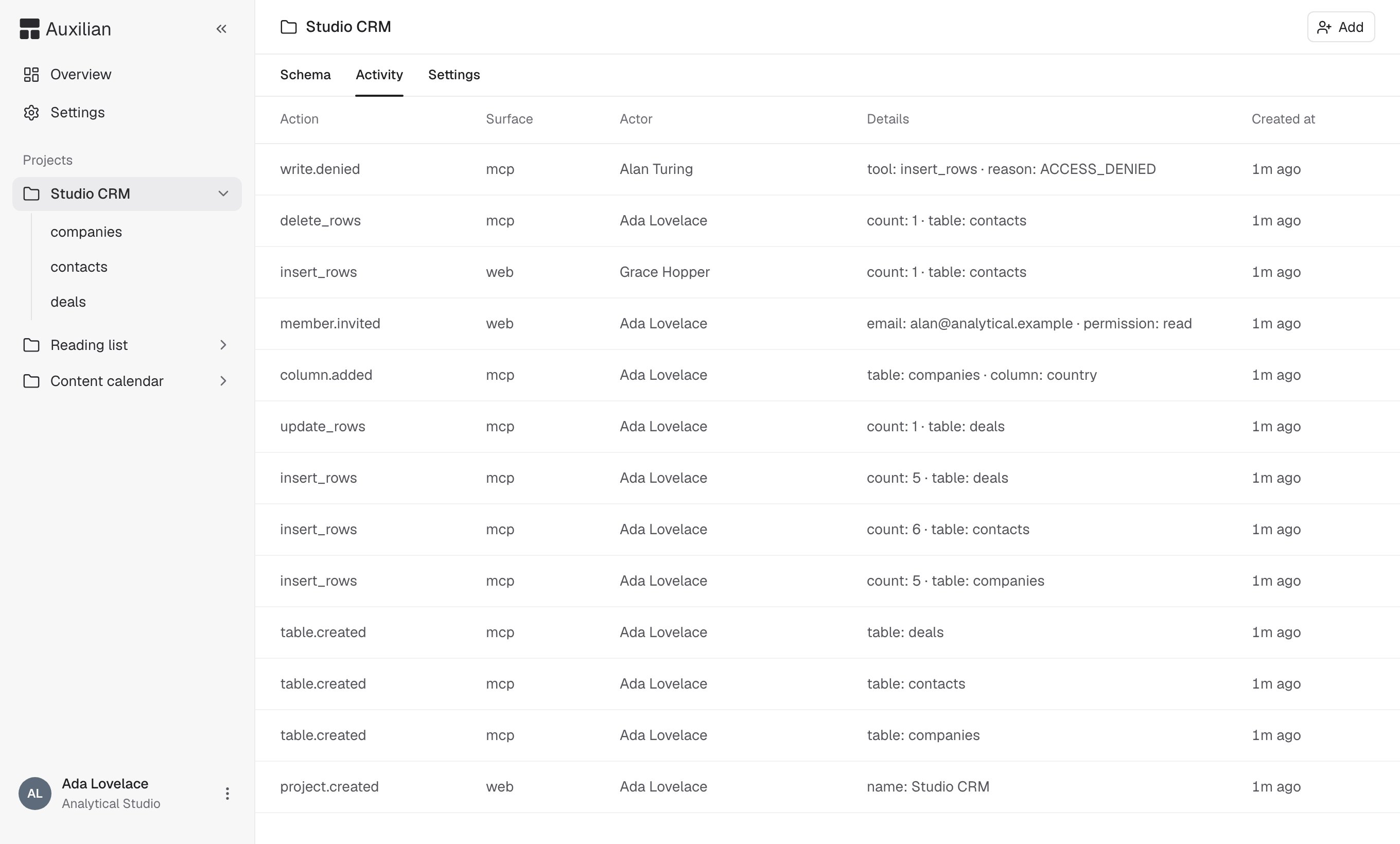
* The **Activity** tab shows `table.created` and `insert_rows` events with the surface `mcp` and your name as the actor.
 You now have a Postgres table that you and Claude share. Edit a row in the web app, then ask Claude about it. Both surfaces read the same data.
## Next steps
Prompts and habits that get good results.
Invite teammates and grant read or write access.
This documentation is built and hosted on [Mintlify](https://mintlify.com), a developer documentation platform.
You now have a Postgres table that you and Claude share. Edit a row in the web app, then ask Claude about it. Both surfaces read the same data.
## Next steps
Prompts and habits that get good results.
Invite teammates and grant read or write access.
This documentation is built and hosted on [Mintlify](https://mintlify.com), a developer documentation platform.