> ## Documentation Index
> Fetch the complete documentation index at: https://docs.auxilian.ai/llms.txt
> Use this file to discover all available pages before exploring further.
# Members and roles
> Invite people to a workspace, change their roles, and remove them.
Manage workspace members from **Settings** > **Members** in the web app. The page manages the [active workspace](/collaborate/workspaces#the-active-workspace).
## Roles
| Capability | Owner | Admin | Member |
| - | :-: | :-: | :-: |
| See the member list | Yes | Yes | Yes |
| Open projects shared with them | Yes | Yes | Yes |
| Write access to every project in the workspace | Yes | Yes | No |
| Create projects | Yes | Yes | No |
| Delete any project in the workspace | Yes | Yes | No |
| Rename the workspace | Yes | Yes | No |
| Invite members | Yes | Yes | No |
| Invite admins | Yes | No | No |
| Change roles | Yes | No | No |
| Remove members | Yes | Yes | No |
Each workspace has exactly one owner: the person it was created for. Ownership can't be transferred, and the owner can't be removed.
## Invite someone
Owners can invite admins and members. Admins can invite members.
Select **Settings** in the sidebar and find **Members**.
Type the person's email address in **Invite by email** and choose a role.
Select **Send invite**. The person appears in the list with an **Invited** badge.
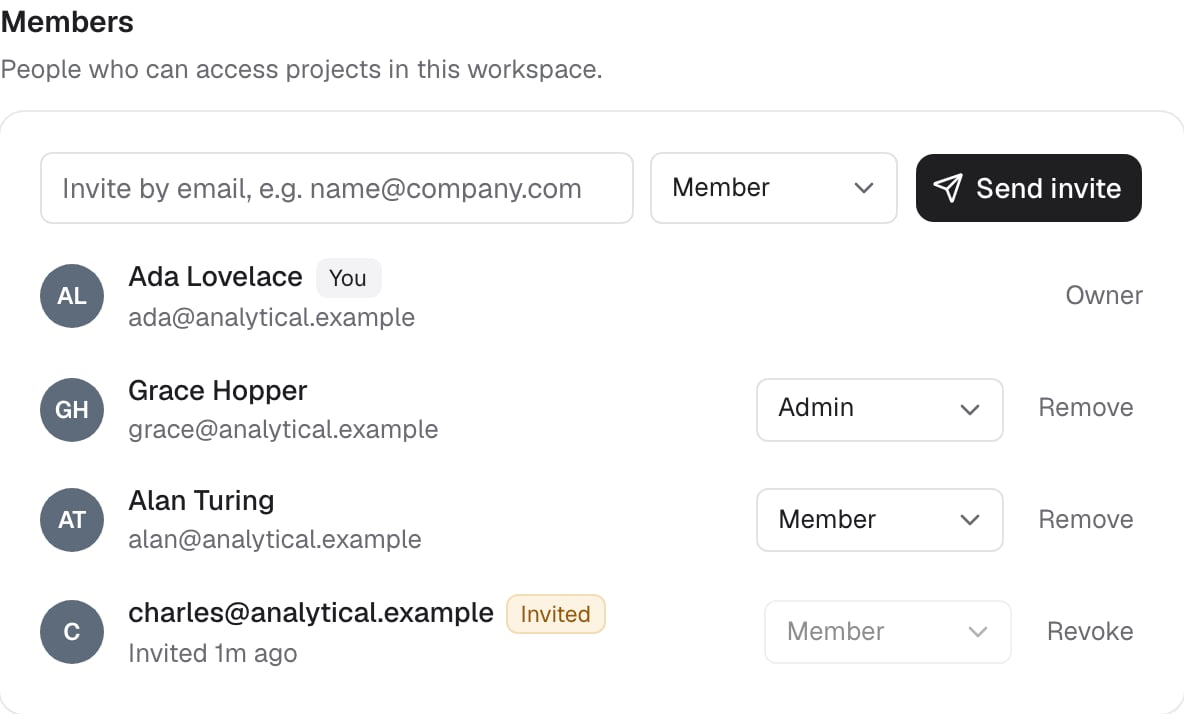 Auxilian emails an invitation. If the email can't be sent right away, you see **Invite saved — email delivery pending**, and the invitation still works.
The invitation is accepted automatically the next time the person signs in to Auxilian with a Google account that has that email address. If they have never signed in, they sign up by signing in.
Invitations are matched by email address. Invite the address of the Google account the person signs in with.
### Revoke an invitation
Owners and admins can revoke a pending invitation. Select **Revoke** next to it, then **Confirm revoke?**.
## Change a role
Only the owner can change roles. Choose **Admin** or **Member** from the role menu next to a person. You can't change your own role or the owner's role.
Promoting someone to admin gives them write access to every project in the workspace. Demoting an admin to member removes that implicit access. They keep only projects shared with them directly and projects they created.
## Remove a member
Owners and admins can remove anyone except the owner and themselves. Select **Remove** next to the person, then **Confirm remove?**.
Removing someone:
* Removes their access to every project in the workspace, including projects they created
* Deletes their project access grants in that workspace
* Leaves their data in place: tables and rows they created stay in the projects
Any AI assistant they connected loses access to the workspace at the same time.
## Leave a workspace
There is no leave button. Ask the workspace owner or an admin to remove you.
## Seat limit
A workspace can have up to 25 members and pending invitations combined. Revoke unused invitations to free seats.
This documentation is built and hosted on [Mintlify](https://mintlify.com), a developer documentation platform.
Auxilian emails an invitation. If the email can't be sent right away, you see **Invite saved — email delivery pending**, and the invitation still works.
The invitation is accepted automatically the next time the person signs in to Auxilian with a Google account that has that email address. If they have never signed in, they sign up by signing in.
Invitations are matched by email address. Invite the address of the Google account the person signs in with.
### Revoke an invitation
Owners and admins can revoke a pending invitation. Select **Revoke** next to it, then **Confirm revoke?**.
## Change a role
Only the owner can change roles. Choose **Admin** or **Member** from the role menu next to a person. You can't change your own role or the owner's role.
Promoting someone to admin gives them write access to every project in the workspace. Demoting an admin to member removes that implicit access. They keep only projects shared with them directly and projects they created.
## Remove a member
Owners and admins can remove anyone except the owner and themselves. Select **Remove** next to the person, then **Confirm remove?**.
Removing someone:
* Removes their access to every project in the workspace, including projects they created
* Deletes their project access grants in that workspace
* Leaves their data in place: tables and rows they created stay in the projects
Any AI assistant they connected loses access to the workspace at the same time.
## Leave a workspace
There is no leave button. Ask the workspace owner or an admin to remove you.
## Seat limit
A workspace can have up to 25 members and pending invitations combined. Revoke unused invitations to free seats.
This documentation is built and hosted on [Mintlify](https://mintlify.com), a developer documentation platform.