> ## Documentation Index
> Fetch the complete documentation index at: https://docs.auxilian.ai/llms.txt
> Use this file to discover all available pages before exploring further.
# Rows
> Browse, filter, add, edit, and delete rows in the Auxilian web app.
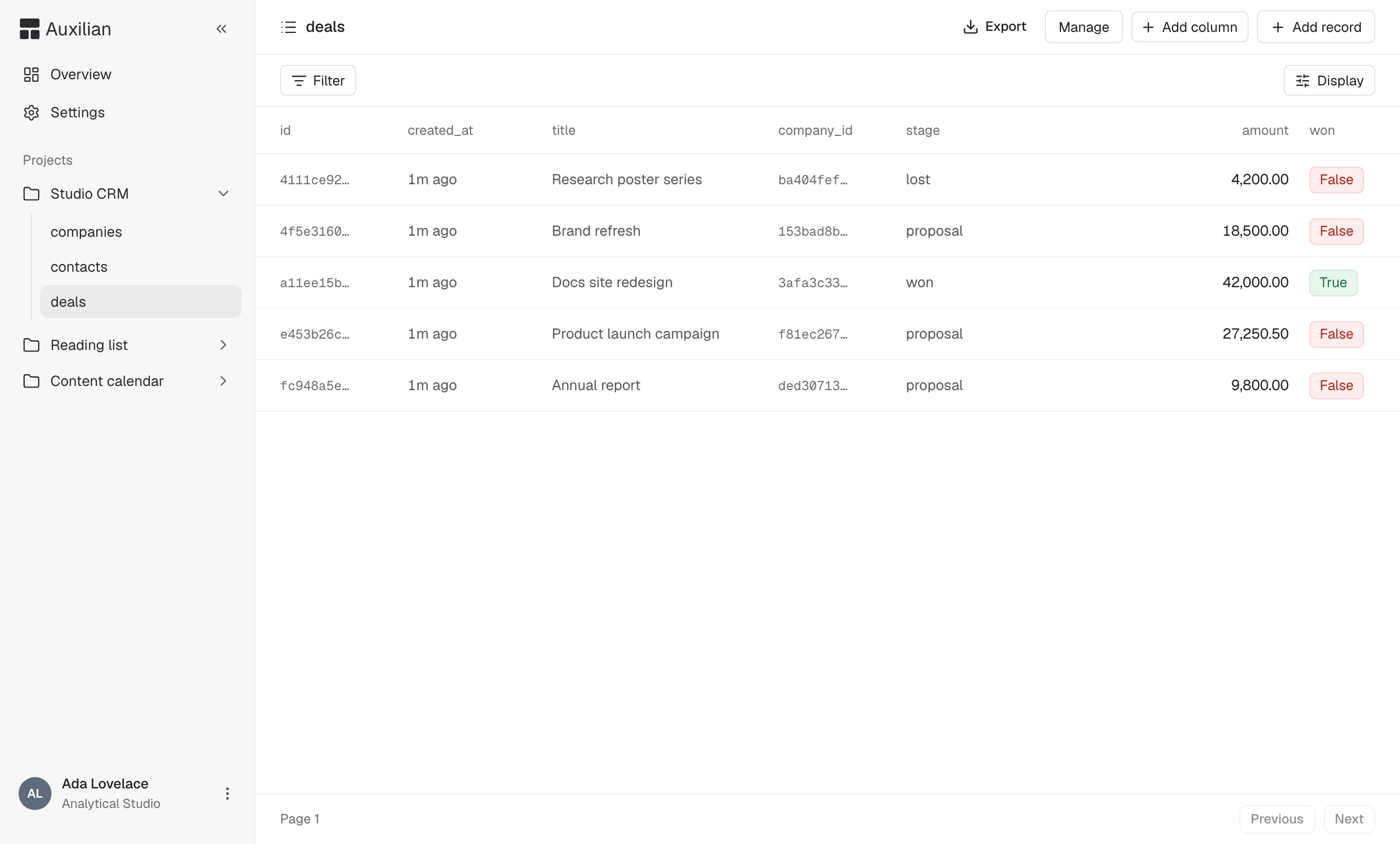
Select a table in the sidebar to open it. The table view shows 25 rows per page, newest first.
 ## Browse rows
* Use **Previous** and **Next** at the bottom to page through rows.
* Relative times such as `6h ago` appear for `timestamptz` values.
* `boolean` values appear as **True** and **False** pills.
### Filter
Select **Filter** in the toolbar, then **Add filter** for each condition, and select **Apply**. **Clear all** removes every condition. The operators depend on the column type:
| Column type | Operators |
| - | - |
| Text and UUID | contains, is, is not, is empty, is not empty |
| Number | equals, does not equal, greater than, greater than or equal, less than, less than or equal, is empty |
| Boolean | is |
| Timestamp | is within (last 7, 30, or 90 days, or last 12 months), is, is before, is after, is empty |
| JSON | has key, is empty |
## Browse rows
* Use **Previous** and **Next** at the bottom to page through rows.
* Relative times such as `6h ago` appear for `timestamptz` values.
* `boolean` values appear as **True** and **False** pills.
### Filter
Select **Filter** in the toolbar, then **Add filter** for each condition, and select **Apply**. **Clear all** removes every condition. The operators depend on the column type:
| Column type | Operators |
| - | - |
| Text and UUID | contains, is, is not, is empty, is not empty |
| Number | equals, does not equal, greater than, greater than or equal, less than, less than or equal, is empty |
| Boolean | is |
| Timestamp | is within (last 7, 30, or 90 days, or last 12 months), is, is before, is after, is empty |
| JSON | has key, is empty |
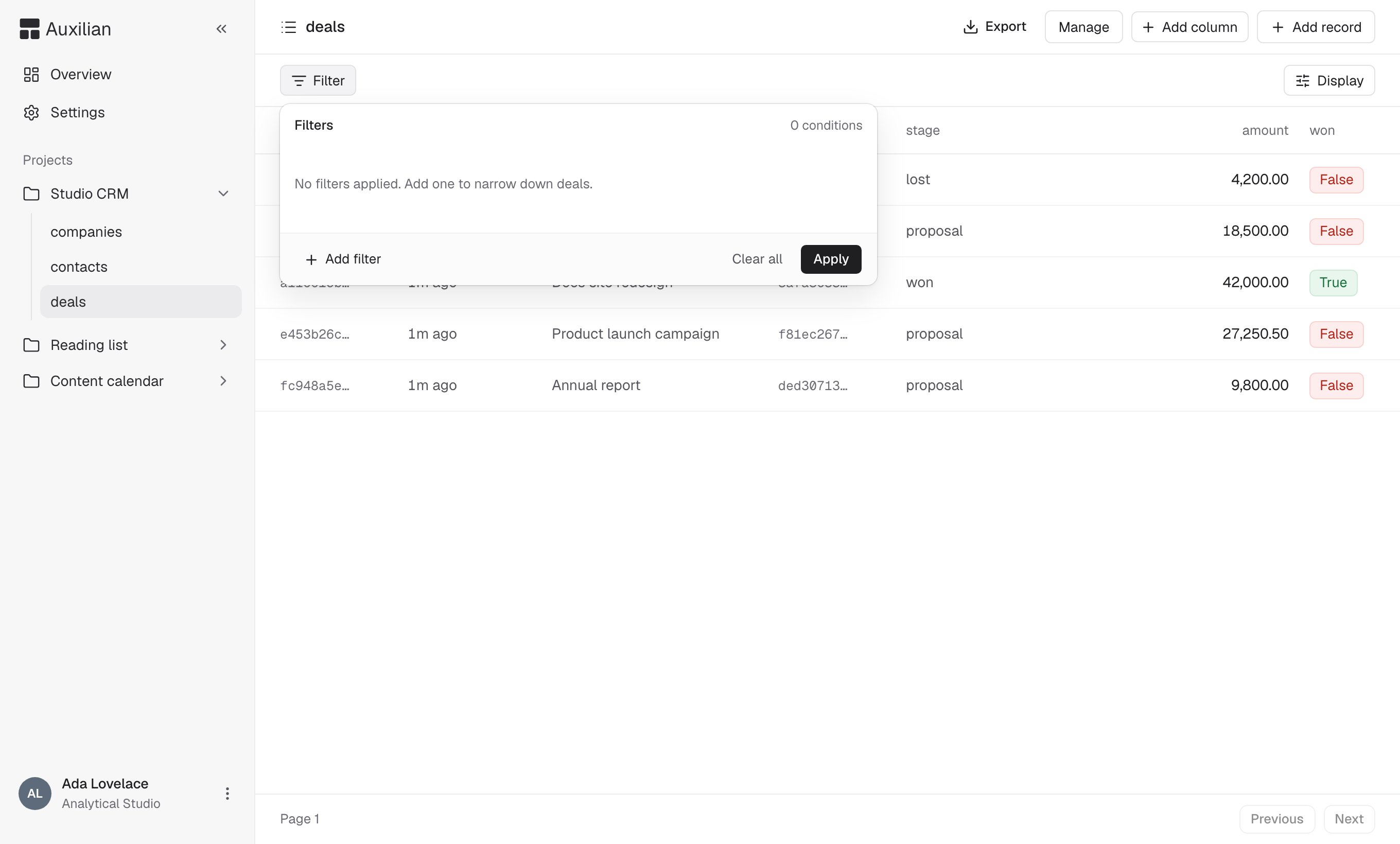 Filters in the web app apply to the rows on the current page. To search a whole table, ask Claude, which filters on the server with `list_rows`. See [Filters](/mcp/filters).
### Display options
Select **Display** in the toolbar to:
* Sort by any column, ascending or descending
* Change row density to **Compact**, **Default**, or **Comfortable**
* Show or hide columns
## Add a row
You need write access to add, edit, or delete rows. Readers see the table without these controls.
Select **Add record** in the header.
Enter a value for each column you want to set. Fields marked with an asterisk are required. `id` and `created_at` are generated automatically. Leave a field blank to use the column's default, or `NULL` if it has none.
Select **Create record**. The row appears in the table. Check **Create another** to keep the form open for the next row.
Filters in the web app apply to the rows on the current page. To search a whole table, ask Claude, which filters on the server with `list_rows`. See [Filters](/mcp/filters).
### Display options
Select **Display** in the toolbar to:
* Sort by any column, ascending or descending
* Change row density to **Compact**, **Default**, or **Comfortable**
* Show or hide columns
## Add a row
You need write access to add, edit, or delete rows. Readers see the table without these controls.
Select **Add record** in the header.
Enter a value for each column you want to set. Fields marked with an asterisk are required. `id` and `created_at` are generated automatically. Leave a field blank to use the column's default, or `NULL` if it has none.
Select **Create record**. The row appears in the table. Check **Create another** to keep the form open for the next row.
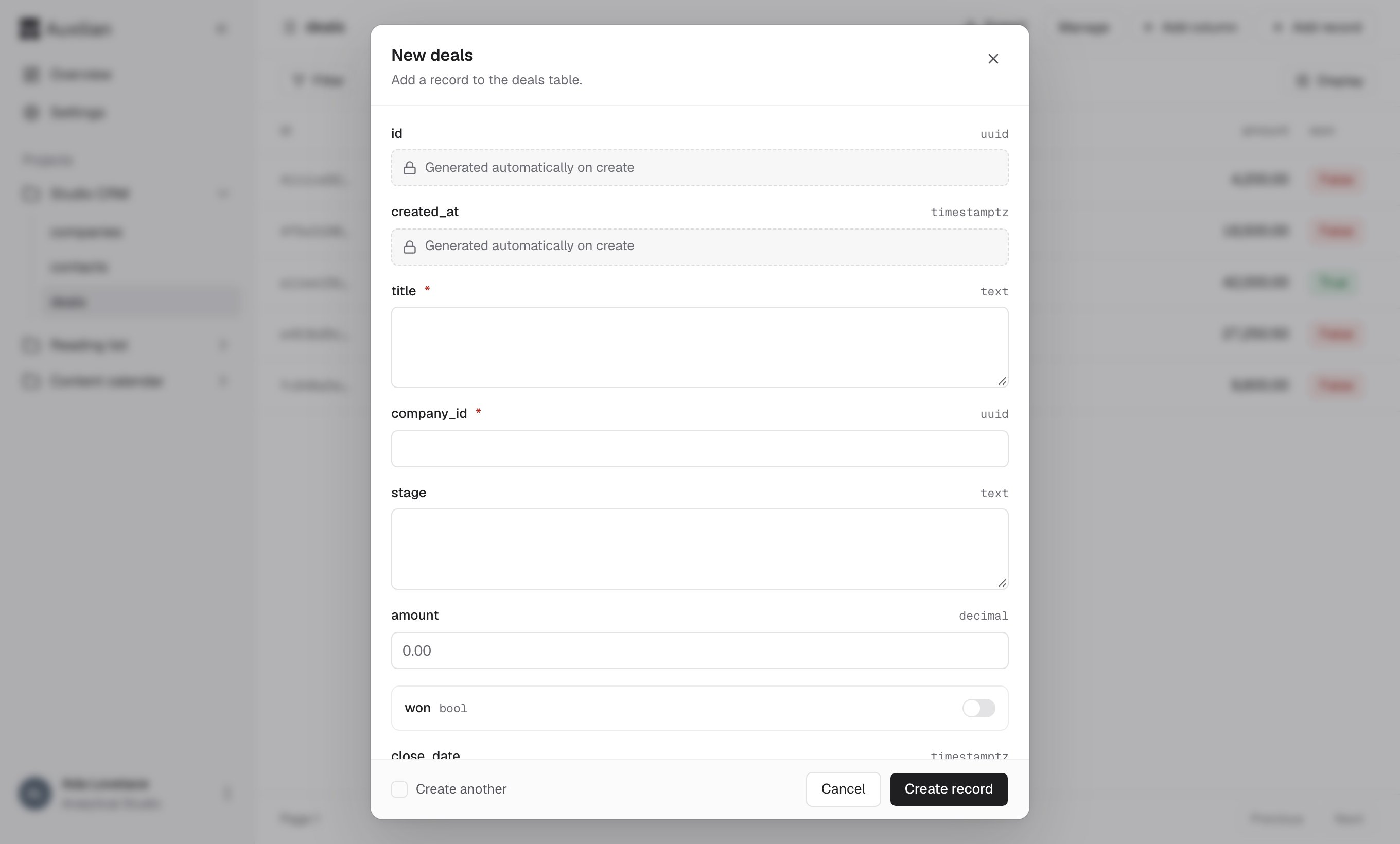 Boolean columns appear as a switch. Enter `jsonb` values as valid JSON, such as `{"priority": "high"}` or `["a", "b"]`.
## Edit a row
Select a row in the table. A bar appears at the bottom with the row's id.
Select **Edit**, change the values, and select **Save**.
When editing, clearing a field sets the cell to `NULL`. Clearing a required field fails with an error like `Column "title" is required`. You can't edit `id` or `created_at`.
## Delete a row
Select the row, then select **Delete** in the bottom bar and confirm. Deleting a row cannot be undone.
If another table has a foreign key that points at the row, the outcome depends on that foreign key's rule. With the default rule, `restrict`, the delete is refused. See [Foreign keys](/reference/foreign-keys).
## Size limits
* A single value can be at most 16 KB.
* A whole row can be at most 64 KB.
* A project can store up to 50 MB in total. When it is full, inserts and edits are refused. See [How storage is measured](/reference/limits#how-storage-is-measured).
This documentation is built and hosted on [Mintlify](https://mintlify.com), a developer documentation platform.
Boolean columns appear as a switch. Enter `jsonb` values as valid JSON, such as `{"priority": "high"}` or `["a", "b"]`.
## Edit a row
Select a row in the table. A bar appears at the bottom with the row's id.
Select **Edit**, change the values, and select **Save**.
When editing, clearing a field sets the cell to `NULL`. Clearing a required field fails with an error like `Column "title" is required`. You can't edit `id` or `created_at`.
## Delete a row
Select the row, then select **Delete** in the bottom bar and confirm. Deleting a row cannot be undone.
If another table has a foreign key that points at the row, the outcome depends on that foreign key's rule. With the default rule, `restrict`, the delete is refused. See [Foreign keys](/reference/foreign-keys).
## Size limits
* A single value can be at most 16 KB.
* A whole row can be at most 64 KB.
* A project can store up to 50 MB in total. When it is full, inserts and edits are refused. See [How storage is measured](/reference/limits#how-storage-is-measured).
This documentation is built and hosted on [Mintlify](https://mintlify.com), a developer documentation platform.